

Android Getting Started
This guide walks you through everything required to automate an Android device with Midscene: connect a real phone over adb, configure model credentials, try the no-code Playground, and run your first JavaScript script.
Control Android devices with JavaScript: https://github.com/web-infra-dev/midscene-example/blob/main/android/javascript-sdk-demo
Integrate Vitest for testing: https://github.com/web-infra-dev/midscene-example/tree/main/android/vitest-demo
Set up API keys for model
Set your model configs into the environment variables. You may refer to Model strategy for more details.
For more configuration details, please refer to Model strategy and Model configuration.
Prepare your Android device
Before scripting, confirm adb can talk to your device and the device trusts your machine.
Install adb and set ANDROID_HOME
- Install via Android Studio or the command-line tools
- Verify installation:
Example output indicates success:
- Set
ANDROID_HOMEas documented in Android environment variables, then confirm:
Any non-empty output means it is configured:
Enable USB debugging and verify the device
In the system settings developer options, enable USB debugging (and USB debugging (Security settings) if present), then connect the device via USB.
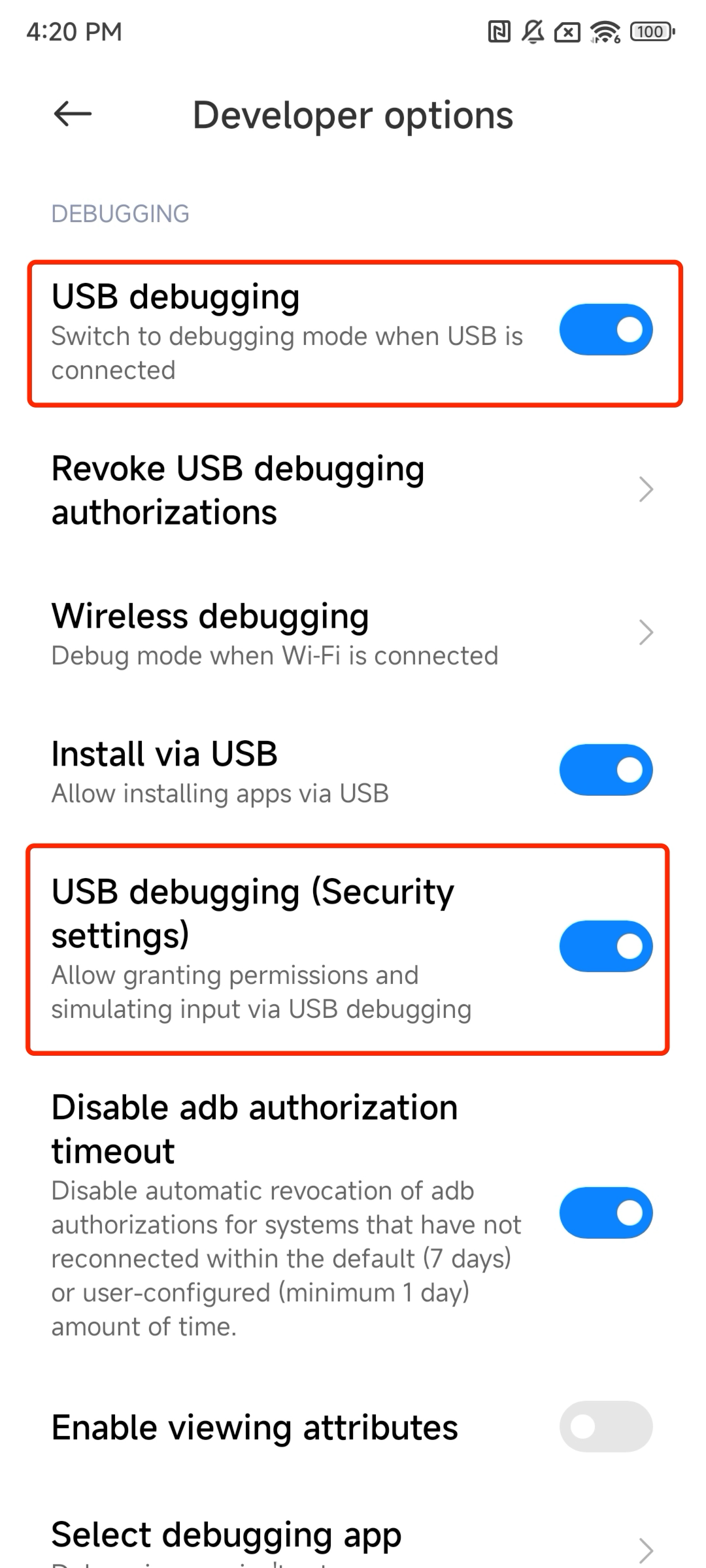
Verify the connection:
Example success output:
Try Playground (no code)
Playground is the fastest way to validate the connection and observe AI-driven steps without writing code. It shares the same core as @midscene/android, so anything that works here will behave the same once scripted.
- Launch the Playground CLI:
- Click the gear icon in the Playground window, then paste your API key configuration. Refer back to Model configuration if you still need credentials.
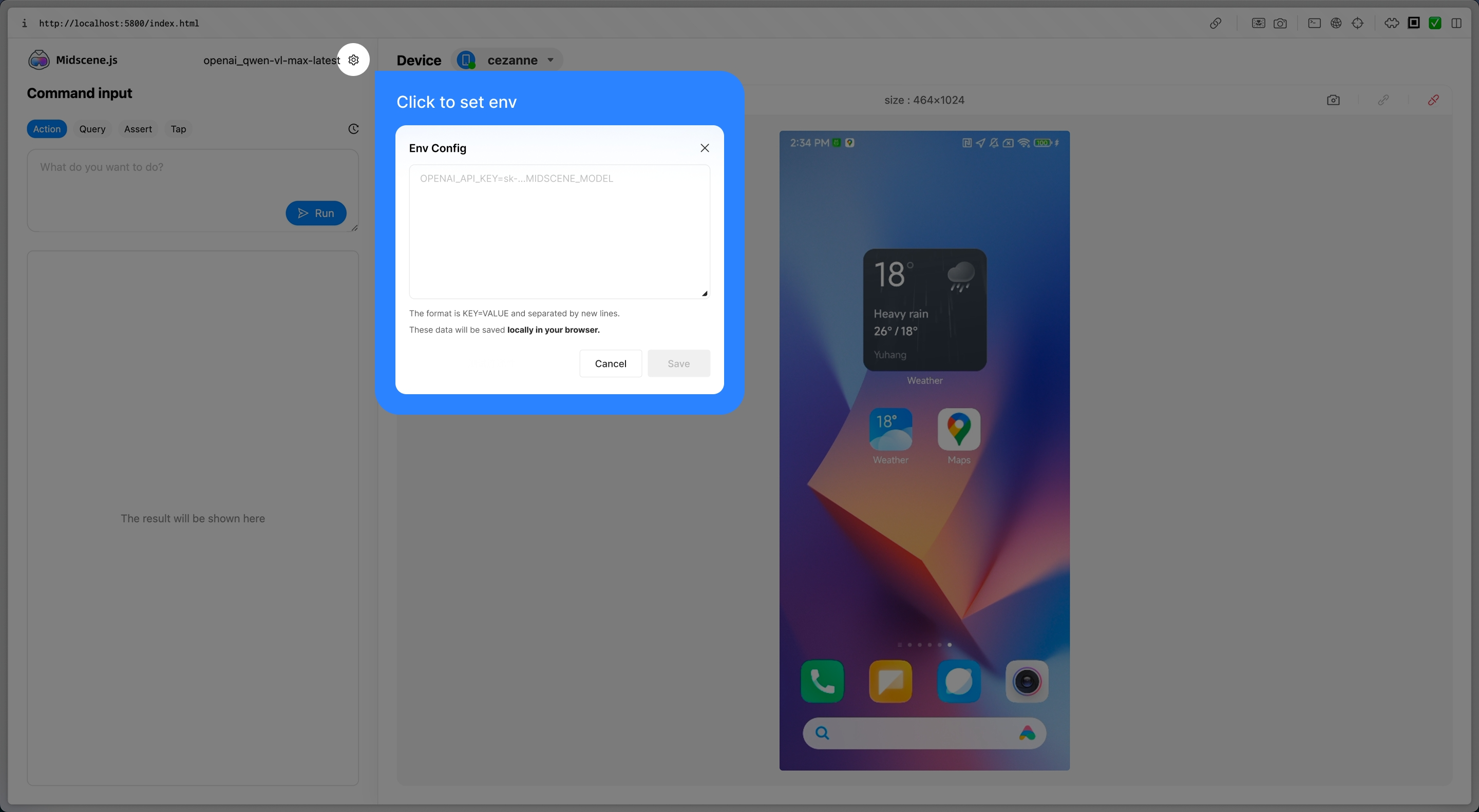
Start experiencing
After configuration, you can start using Midscene right away. It provides several key operation tabs:
- Act: interact with the page. This is Auto Planning, corresponding to
aiAct. For example:
- Query: extract JSON data from the interface, corresponding to
aiQuery.
Similar methods include aiBoolean(), aiNumber(), and aiString() for directly extracting booleans, numbers, and strings.
- Assert: understand the page and assert; if the condition is not met, throw an error, corresponding to
aiAssert.
- Tap: click on an element. This is Instant Action, corresponding to
aiTap.
For the difference between Auto Planning and Instant Action, see the API document.
Integration with Midscene Agent
Once Playground works, move to a repeatable script with the JavaScript SDK.
Step 1. Install dependencies
Step 2. Write scripts
Save the following code as ./demo.ts. It opens the browser on the device, searches eBay, and asserts the result list.
Step 3. Run
Step 4: View the report
Successful runs print Midscene - report file updated: /path/to/report/some_id.html. Open the generated HTML file in a browser to replay every interaction, query, and assertion.
Advanced
Use this section when you need to customize device behavior, wire Midscene into your framework, or troubleshoot adb issues. For detailed constructor parameters, jump to the API reference(Android).
Extend Midscene on Android
Use defineAction() for custom gestures and pass them through customActions. Midscene will append them to the planner so AI can call your domain-specific action names.
See Integrate with any interface for a deeper explanation of custom actions and action schemas.
More
- For every Agent method, check the API reference (Common).
- For the Android API reference, see Android Agent API.
- Demo projects
- Android JavaScript SDK demo: https://github.com/web-infra-dev/midscene-example/blob/main/android/javascript-sdk-demo
- Android + Vitest demo: https://github.com/web-infra-dev/midscene-example/tree/main/android/vitest-demo
Complete example (Vitest + AndroidAgent)
Merged reports are stored inside midscene_run/report by default. Override the directory with MIDSCENE_RUN_DIR when running in CI.
FAQ
Why can't I control the device even though I've connected it?
A common error is:
Make sure USB debugging is enabled and the device is unlocked in developer options.
Text input is cleared or lost after typing
After entering text, Midscene automatically dismisses the keyboard. The default behavior sends an ESC key event. However, some input fields (especially those inside WebView) listen for the ESC key event, which can cause side effects such as:
- Clearing the text just entered
- Closing the popup/modal containing the input field
- Navigating away from the current page
You can try the following solutions in order of priority:
Option 1: Use the BACK key (Android back button) to dismiss the keyboard
Set keyboardDismissStrategy to 'back-first' to use the Android BACK key instead of ESC to dismiss the keyboard:
Option 2: Disable auto keyboard dismiss
If your input field also listens for the BACK key, you can disable auto keyboard dismiss entirely and let the AI Agent or subsequent actions manage the keyboard state:
With auto dismiss disabled, the keyboard will remain visible and may cover a large portion of the screen. You can work around this by:
- Using
aiActto manually dismiss the keyboard, e.g.await agent.aiAct('tap the collapse button on the keyboard') - Installing and switching to ADBKeyBoard — a minimal virtual keyboard that takes up very little screen space, so it barely affects screen interactions even when visible
How do I use a custom adb path or remote adb server?
Set the environment variables first:
You can also provide the same information via the constructor: